This section looks at custom palettes and steps you through:
Table: Overview of multiple selection mechanisms.
--------------------------------------------------------
To do this...        |Use these keys
--------------------------------------------------------
Select more than one |Shift-click.
color.               |
--------------------------------------------------------
Deselect only one    |Shift-click on a selected color.
color in a multiple  |
selection.           |
--------------------------------------------------------
Blacken a selection  |Control-click the selection.
(replace with 0, 0,  |
0).                  |
--------------------------------------------------------
Replace the color in |First Option-click a color to
a blackened          |replace black. Then Option-click
selection.           |on blackened colors to replace
                     |them with the selected color. If
                     |you click on a nonblackened color,
                     |it does not change and becomes the
                     |color that replaces the next
                     |blackened color you select.
--------------------------------------------------------
Set the P-Mode on a  |Select more than one color and
multiple selection.  |click the P-Mode checkbox. The
                     |P-Mode is inverted for all
                     |selected colors.
--------------------------------------------------------
Table: Changing the palette.
--------------------------------------------------------
To do this...  |Follow this procedure
--------------------------------------------------------
Modify one     |* Click on the color to select it.
color.         |* Change the RGB (or HSV) values by
               |moving the small cursors next to the
               |color bars or clicking on the box and
               |then typing in the RGB or HSV color
               |value.
               |You can view the color in the sample
               |area above the color bars, as well as in
               |the selected cel of the palette grid.
--------------------------------------------------------
Move a color.  |Click on the color in the palette grid
               |and drag it to its new position.
--------------------------------------------------------
Create a spread|Hold down the Command key and click on
of colors      |the two colors. All colors between the
between two    |selected two colors are replaced to
colors in the  |create the gradient.
palette        |
--------------------------------------------------------
Reorganize     |* Hold down the Shift key while clicking
colors.        |on the colors you want to reorganize.
               |* While still holding down the Shift
               |key, drag your selection to the palette
               |location for the first color of the
               |group. When you release the mouse
               |button, the colors are displayed in the
               |order selected starting at this new
               |position.
               |* To deselect a color you selected in a
               |multiple selection, hold down Shift
               |while clicking on the color.
               |* Click Remap Document.
--------------------------------------------------------
Working with a custom palette
After modifying a palette, apply it to the document using the Remap
Document button or the Update Document button.
Assume you select a shade of yellow in the document and change it to a shade of purple.
Note: You should save and load palettes for coded cels in 3DO PLUT format.
This section steps you through saving and loading a palette.
A dialog appears.
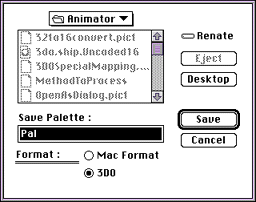
Figure 1: Save Palette dialog.
The new palette is displayed in place of the previous palette, but the system does not remap or update the document.