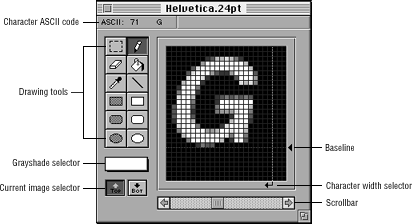
Figure 1: FontWriter Character Edit window.
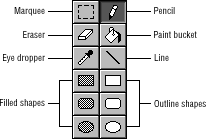
Figure 2: Character Edit window drawing tools.
The drawing tools let you make changes to the font, as illustrated in the table below:
Table 1:  FontWriter drawing tools.
--------------------------------------------------------
Tool           |Function
--------------------------------------------------------
Marquee        |Selects a region to edit as follows:Cut,
               |copy, or paste using the standard
               |editing commands.Shift the selected
               |region by one pixel using the Transform
               |menu.Flip the selected region vertically
               |or horizontally using the Transform
               |menu.
--------------------------------------------------------
Pencil         |Draws individual pixels in the currently
               |selected color.
--------------------------------------------------------
Eraser         |Erases individual pixels to black.
               |Double-clicking on it completely erases
               |the current character.
--------------------------------------------------------
Paint bucket   |Selects a paint color, then the paint
               |bucket. Click on a pixel in the edit
               |region and the paint bucket fills all
               |adjacent pixels to match the color of
               |the selected pixel in the paint bucket
               |color.
--------------------------------------------------------
Eye dropper    |Changes the color selector to the color
               |of the pixel clicked in the edit region.
--------------------------------------------------------
Line tool      |Draws lines in the currently selected
               |color.
--------------------------------------------------------
Filled shape   |Draws filled shapes in the selected
               |color.
--------------------------------------------------------
Outline shape  |Draws outline shapes in the selected
               |color.
--------------------------------------------------------
Color selector |Selects the shade of gray to use for
               |drawing. To preview the font in color,
               |use the Preview window.
--------------------------------------------------------
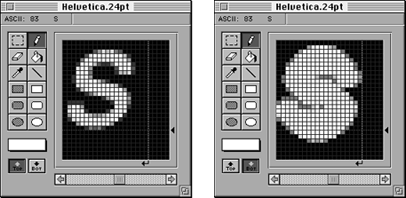
Figure 3: A character only display (left) and character and outline (right).